.png)
This is one of six new updates, all based on your requests. See them all here: Product Roundup: 6 New Features from Cupholder Week!
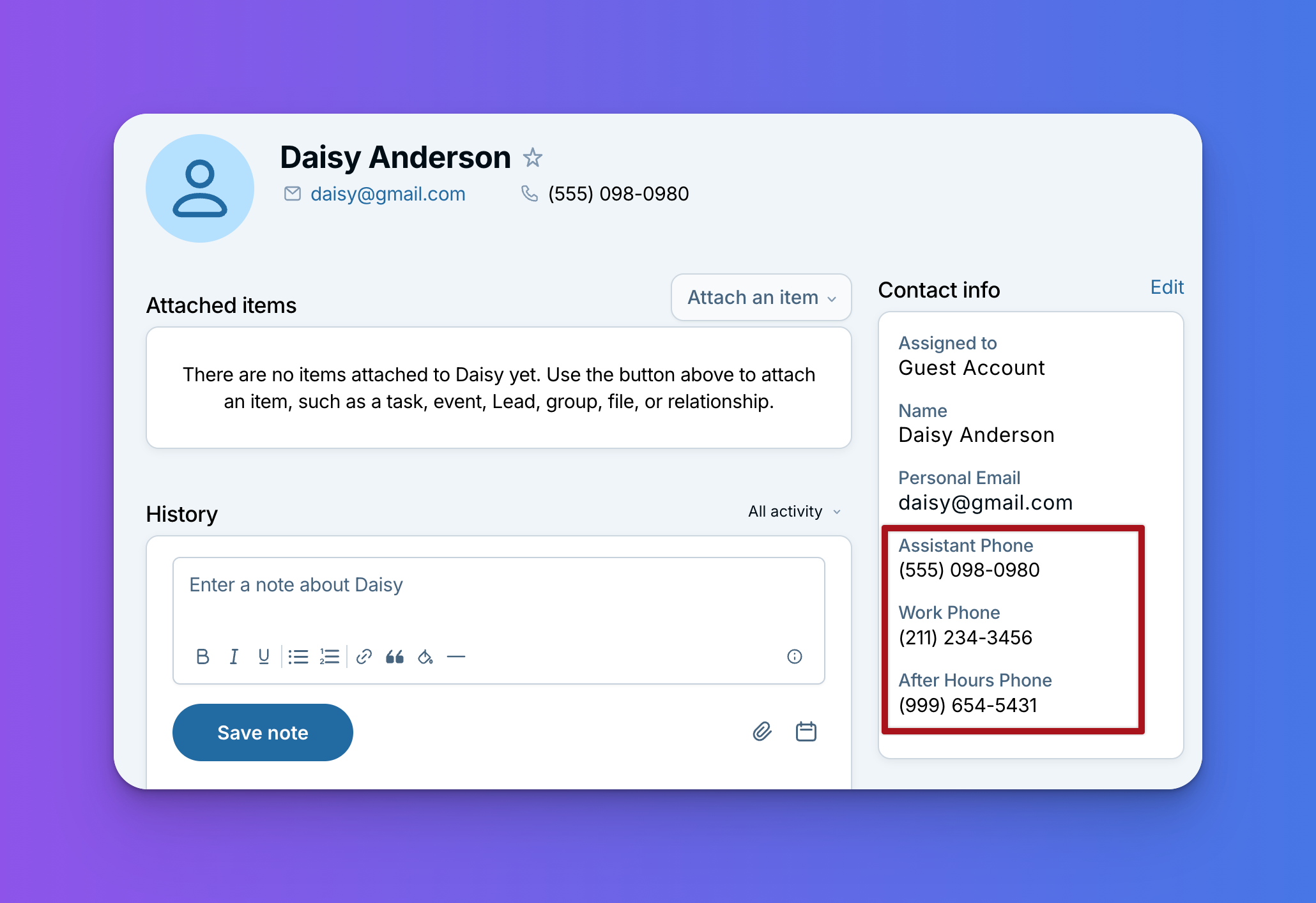
Every business is a little different, and so is the contact info you need to keep track of. A lot of our customers work with individuals and never need to know a client's work phone number. Others work in industries where nobody has sent a fax in years. And many of you need labels that aren't there by default, like a client's spouse, an after-hours line, a billing inbox, or a job site address.
You asked for more flexibility, and now you've got it: you can customize the types on your phone, email, and address fields so they match the way you work.
What it does
Types are the small labels next to each phone number, email address, or address on a contact, like "Work" or "Mobile." They tell you which number to call or which inbox to use.
Admins can now customize the list of types for phone numbers, email addresses, and addresses. You can add your own types, rename or remove the ones you don't use (including defaults like Work and Home), and drag and drop them into whatever order works best.
Your custom types are shared across your whole team, so everyone labels contact info the same way.
A few examples:
- Spouse for the phone number or email of a client's husband or wife
- Main line for a company's general number, so you know it's not someone's direct line
- After hours for the number to use when the office is closed
- Billing for the email address invoices should go to
- Job site for an address where you're doing work for a client
Why it's handy
- Clearer contact info: You and your team know exactly which number, email, or address to use, and when.
- Consistent across the team: Since types are shared, everyone uses the same labels.
- Less clutter: Remove types you never use, like Work or Fax, so the list only shows what matters to you.
How to set it up
Go to Settings, then Customize your CRM (under Admin settings), and choose Contacts or Companies. Click your Phone, Email, or Address field, then Edit field settings. You'll see a list of types: add one with Add another option, edit or remove the ones there, or drag them into the order you want, then click Save field. Your changes will show up whenever anyone on your team adds or edits that kind of info. For more on changing your fields, see Editing custom contact fields.
If you remove a type that's already in use, you'll be asked to switch those entries to one of your other types, so nothing ends up without a label.
Need a whole separate field instead, like a "Spouse phone" field with room for several numbers? You can now create those too: see Product Update: Custom Email, Phone, Address, and Website Fields.
Make it yours
A big thank you to everyone who requested this. We hope it makes your contact info a little less annoying to manage! If you'd like a second opinion on which types to add or remove, email us at help@lessannoyingcrm.com and we'll be happy to help.
Sign up to receive updates in your inbox