.png)
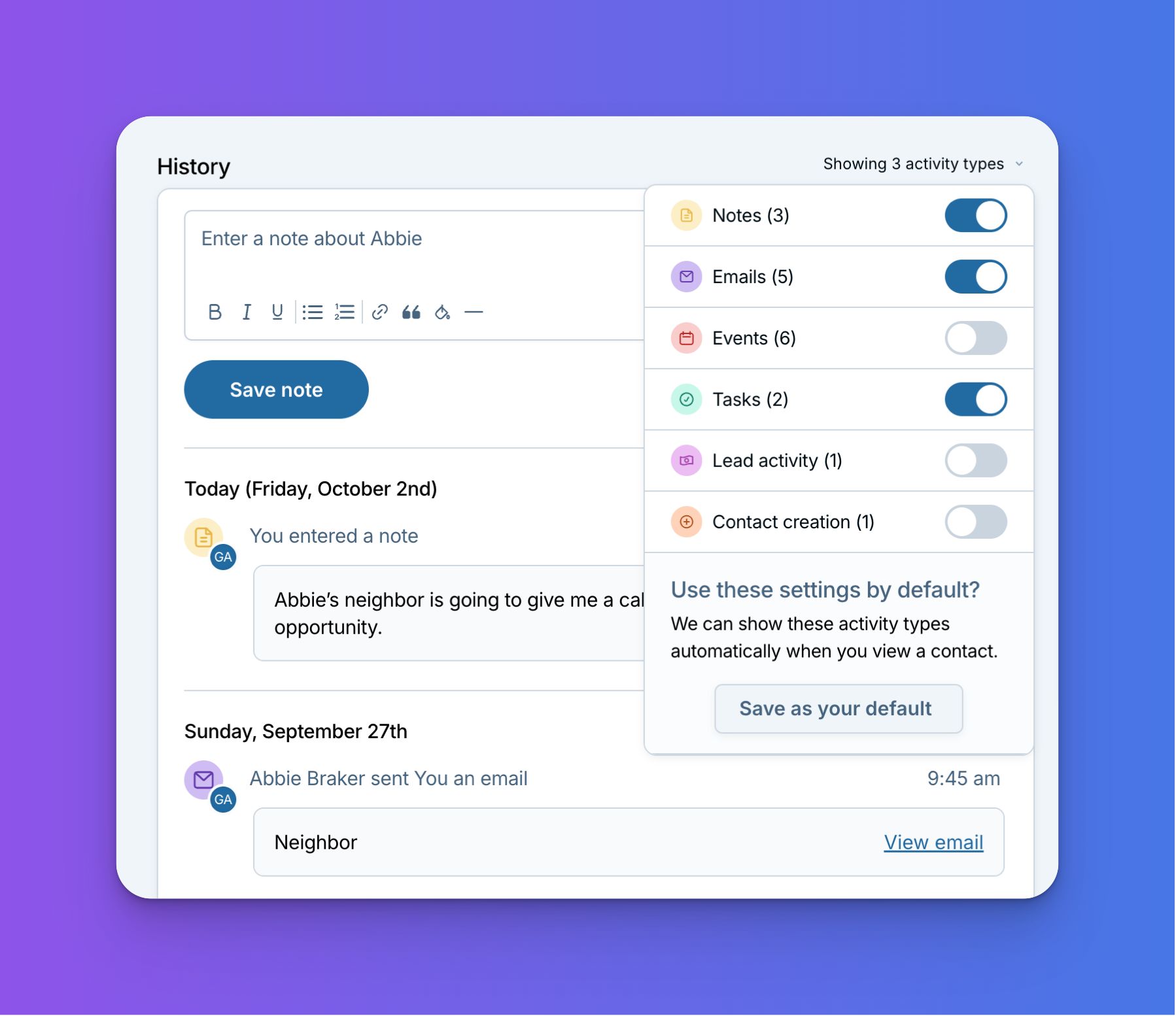
Choose exactly which activity shows up in contact and company history
We're really excited about this one, because it's one of the top requests we hear from customers!
The history on a contact or company record keeps everything about your relationship in one place: notes, emails, events, tasks, pipeline updates, and more. The longer you work with someone, the more it grows. And everyone uses the CRM a little differently. Some people don't need to see pipeline updates at all, while their notes are the most important thing on the page. Now you can choose exactly which types of activity show up, so every record shows what matters most to you.
It's also the first of several new features to launch from Cupholder Week.
How to filter contact and company history
- Open any contact or company record.
- Above the history section, click All activity.
- Use the switches to turn each activity type on or off. The number next to each type shows how many of those items are on the record.
The history updates as soon as you flip a switch, so you can try a few combinations and see what works for you.
Save your filter
Once you've set things up the way you like, save your filter and it becomes your default. When you save, you choose where it applies: all your contacts, all your companies, or both. That way you can use the same filter everywhere, or set up contacts and companies differently.
A few ways to use it
- 📝 Remembering the details: show only notes to reread what you've learned about someone.
- 📧 Before a call: switch to just emails to catch up on your last conversation.
- 📅 Looking back at meetings: show only events to see every meeting you've had with that contact.
- ✅ Finding finished work: show only tasks to quickly spot something you've already completed for them.
As always, please feel free to reach out to help@lessannoyingcrm.com if you have any questions!
Sign up to receive updates in your inbox