
Your old spreadsheet probably has columns that don't fit neatly anywhere: "Comments," "Last conversation," "How we met." That context is often the most useful part of the whole file! So many of you have asked for a way to bring it with you, and now you can. Any column can now be imported as notes.
What it does
When you match your columns during an import, you can now choose Note. For every row in your spreadsheet, that column's cell becomes a note in the contact's (or company's) history.
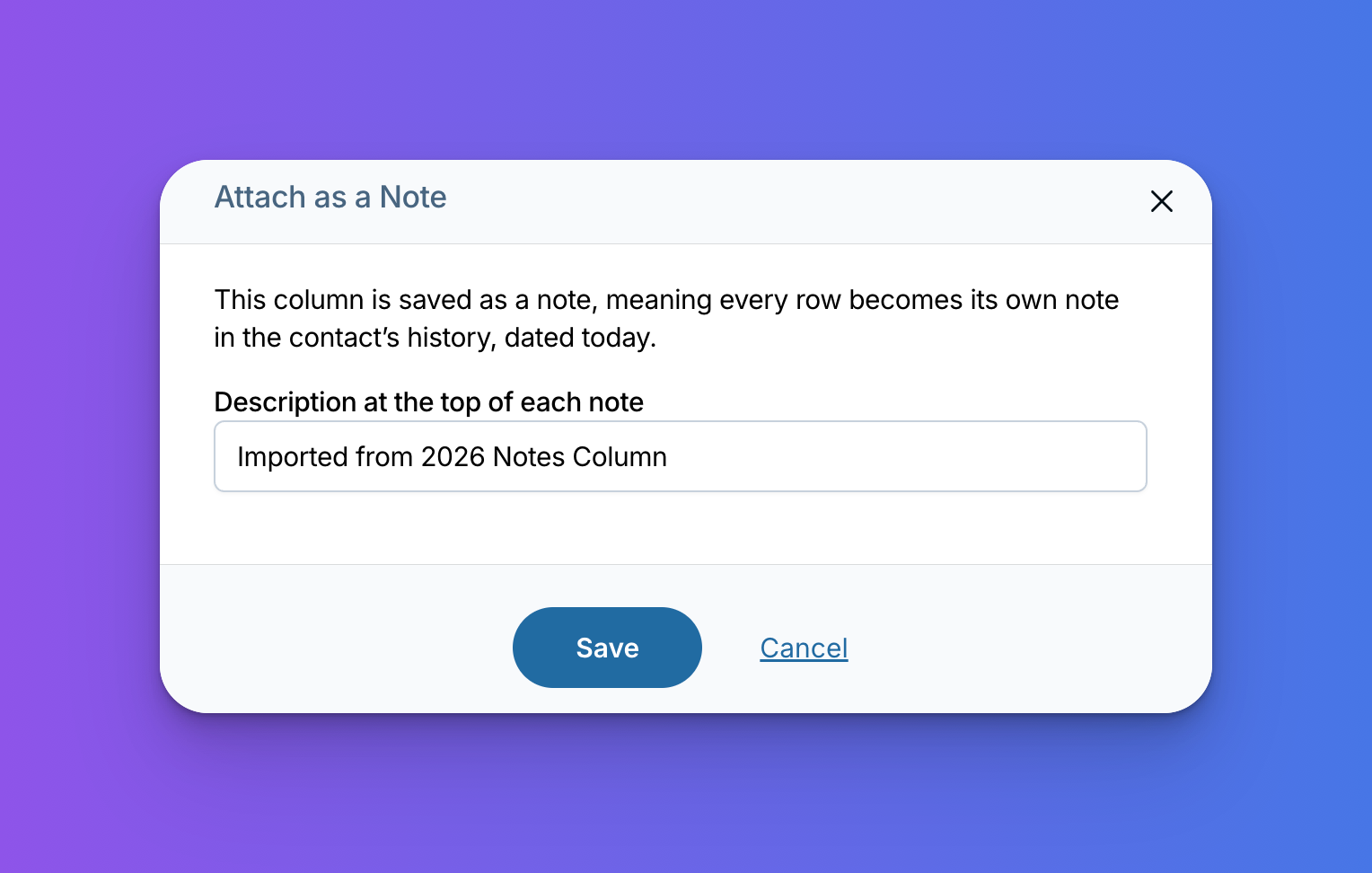
- A label at the top: each note can start with a short description so you know where it came from. We fill in "Imported from the [column name] field" to start, and you can change it or clear it so it's just your note.
- Contacts, companies, or both: notes go wherever you choose.
Setting up your spreadsheet
Each note column gives every contact one note, so you've got two ways to set things up:
- One big note: keep everything in a single column, and each contact gets one note with all of it together. This is the quickest option if your notes already live in one column.
- One column per note: if you'd like separate notes in the history, give each note its own column, like "Note 1," "Note 2," and "Note 3," and choose Note for each one.
For example, if Maria's row has three filled-in note columns, she'll have three separate notes in her history after the import.
Notes or custom fields?
If you're deciding where a column should go, here's an easy way to think about it. Custom fields are great for details you'll want to sort, filter, or report on, like a birthday or a lead source. Notes are for the story: conversations, context, and anything free-form.
Good to know
- Dated the day you import: imported notes show the date and time of the import. If you'd like a note to show its original date, you can edit the note afterward and change the date, just like any other note.
- You choose what becomes a note: just pick Note for any column you'd like to bring in that way (even one already called "Notes").
How to import notes
- Decide how you'd like your notes to come in: one big note per contact (one column), or separate notes (one column for each note).
- Start a new import like you normally would. (Here's our guide to importing if you'd like a refresher.)
- When you get to Map the remaining fields, choose Note for the column you'd like to import as notes. (You'll find it in the field dropdown, or under Attach an item.)
- In the Attach as a Note window, edit or clear the description at the top of each note, then select Save.
- Repeat for each note column, then select Finalize the import.
Thank you!
Thanks to everyone who asked for this one! We hope it makes moving into the CRM feel a lot more complete. You can also now import straight into your pipelines. Here's how that works. Email us at help@lessannoyingcrm.com with questions or feedback.
Sign up to receive updates in your inbox