.png)
If you've ever gone hunting through your settings trying to remember whether the thing you needed was on the Users page or the Teams page, this update is for you.
We've combined those two pages into one. It's now called Users & Teams, and you'll find it in your settings under the same spot you're used to. Everything you could do before is still there, just in one place instead of two. Note: just as before, this page is only accessible to account administrators.
What's changed
Nothing has been taken away, so if you're happy with how you manage your users today, you don't need to do anything differently. You'll just have fewer clicks to get where you're going.
Here's what lives on the new page:
- Your full list of users, along with who has admin access
- Your teams, and which users belong to each one
- Adding, editing, and removing users
- Creating and adjusting teams
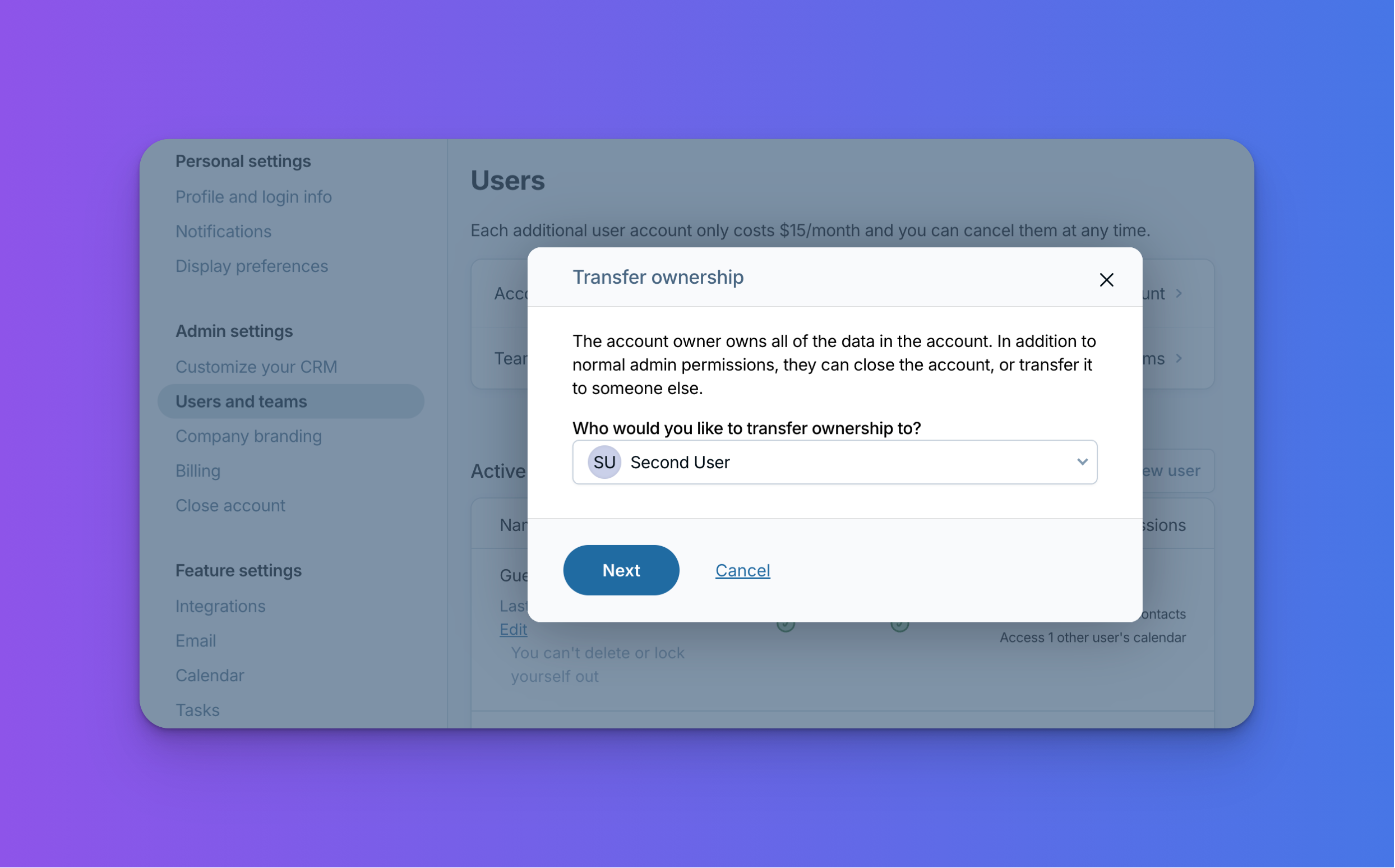
You can transfer account ownership yourself now
Every account has one owner, and until now, changing that owner meant emailing us so we could make the switch on our end. We were always happy to help, but we wanted to make this process easier for you.
Now the account owner can start the transfer themselves, right from the Users & Teams page. Look for "Account owner" near the top, choose who you want to hand it off to, and follow the prompts from there.
There are a couple of email verification steps built in, which is on purpose. Ownership is a big deal, so we want to be sure both people are who they say they are before anything changes hands. You can cancel the transfer at any point before it's finalized.
A few things worth knowing:
- Only the current account owner can start a transfer from inside the CRM. If you need something different, just reach out to us and we'll sort it out with you.
- The person receiving ownership needs to already be a user on your account, so add them first if they aren't.
This comes up more often than you'd think: someone retires, a business changes hands, or the person who originally signed up moves into a different role. Now it's something you can handle on your own schedule instead of waiting on a support ticket.
For the full walkthrough, take a look at our help article on changing the account owner.
Sign up to receive updates in your inbox